Skip to content
Ticket Creation
- Log into Uservoice
- Click on ‘My Tickets’ on the left side of the page

- Click on the ‘+’ symbol next to the search field or click ‘New Ticket’ on the right

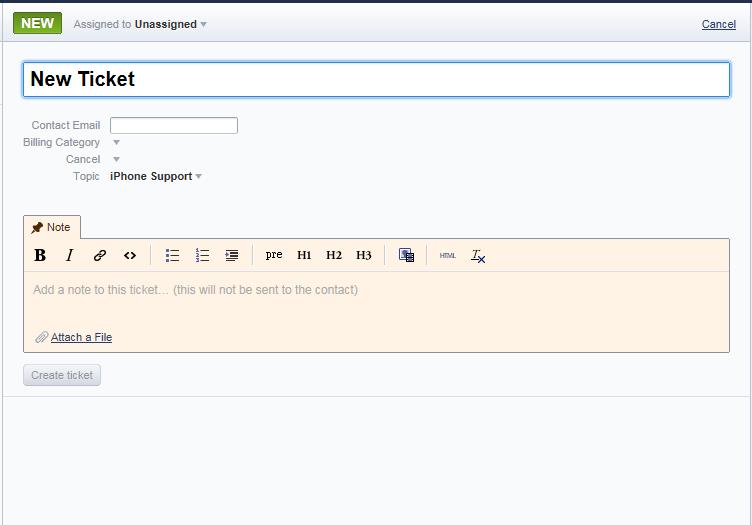
- The new ticket will appear on the right side

- Choose the appropriate department to assign to at the top, to the right of the ‘New’ button
- Unassigned = First call resolution (closing ticket)
- Billing = Cancel Subscriptions of clients who have a paid subscription and want a refund.
- James Dolliver = Technical issues, password resets and any issues out of the norm
- Fill out the ‘Contact Email’. That is the client’s email address
- Choose appropriate “Billing Category”, If the caller is calling on the support line select “Support”
- Choose appropriate ‘Cancel’ category if necessary
- Select appropriate “Type“, if you answered a call this will be “CALL“
- Choose appropriate ‘Topic’
- Paste the template with your work detail in the ‘Note’ field
- Click ‘Create Ticket’
- Done