L2
This page will help layout the processes employed by contactwork L2’s to troubleshoot and resolve issues related to the Tengo wireless networks.
**Every time you reboot a node, make a note in the Tengo/CW Support Group chat letting them know that “node/AP XYZ @ location ABC is being rebooted”**
When Escalating a case to Tengo (including when asked to assign it to a specific Tech), be sure to escalate it to the L3 bucket and give the case a escalation reason, this is very important for reporting purposes.
Note: ELS (equality lifestyle) properties will always have 2 ISP contracts, Tengo manages the drop for the wireless network however the properties will also have a separate drop for the office connection as well, the site manages the office connection.
Working Cases
Whenever you are working a case in the tengo CRM you will need to assign the case to yourself. This is done to prevent multiple individuals from working the same case and helps allow for identification of places where our training needs to be bolstered.

Once you have clicked the red “assign” to me you can then close the edit case page and you will find any cases assigned to you under the blue “My Queue” button any time you are in queue view.
Moving on or leaving for the day
Any time you finish working on a case, move it from your assigned queue back into the CW L2 Net Ops bucket. Before you leave for the day you MUST remove all assigned cases from your bucket and move them back to the CW L2 Net Ops bucket.
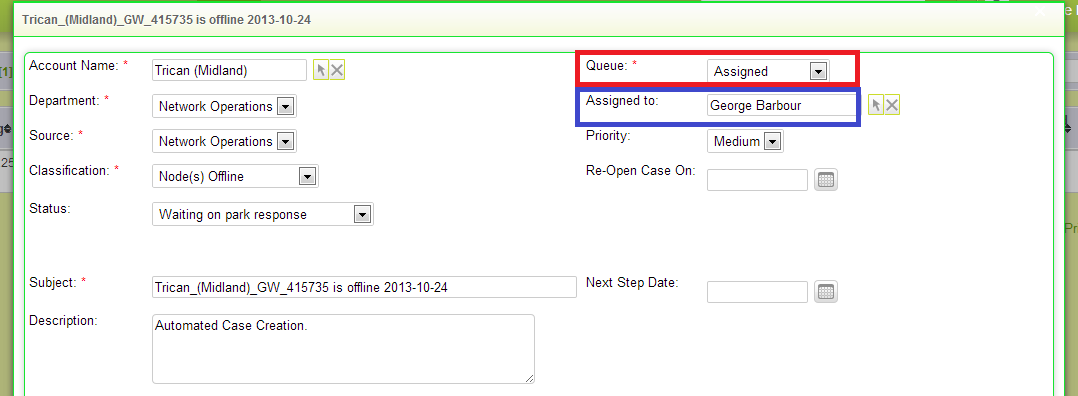
Change the Queue (red) to CW L2 Net Ops and remove your name from Assigned To.