KMC
KMC allows you to look up and manage a resident’s account and look-up support related details of a supported location.
Go to https://manage.korcett.com
Login
You will be prompted to login at this screen: 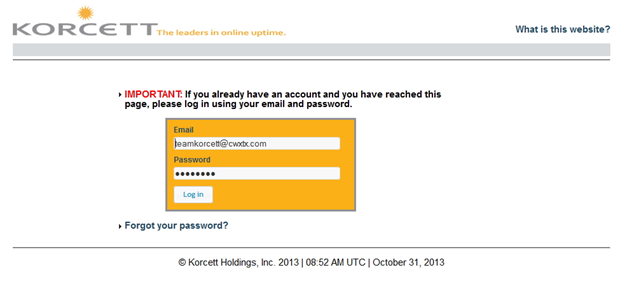
Username: teamkorcett@cwxtx.com
Password: firewall1
Account Search
The Resident tab

It will then take you to the Resident tab where you can search for resident accounts.
The First drop down allows you to select a specific location to filter results by.
The second drop down allows you to select a filter for specific text searches. You can filter the results by the resident’s account ID number, MAC address, email address, first name, last name, or unit number.
Once you do a search for a resident, results matching your search fields will populate. Just click on a the correct resident to open their account screen.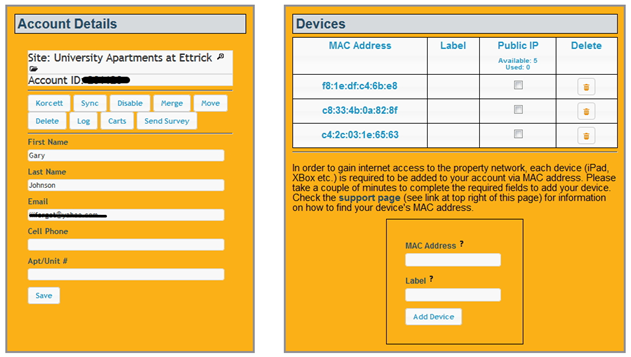
The top part of the account page will have the customer’s account number and information on the left and the customer’s devices on the right.
On the Account Details your can use the move button to change a resident’s location if they move into another location.
You can also update any of the resident’s information. ALWAYS add the customer’s contact phone number if it is not listed or needs to be updated. Remember to hit the save button.
On the Devices frame you or the resident can add their device to the account and allow the device on the internet. Just type the network adapters MAC address and give it a label to identify it by (eg. Macbook, Xbox). Click add device and they should be able to get online.
You can also remove old devices with the delete button.
Some devices such as routers, computers or game consoles may require a Public IP for certain functions. You can just check the Public IP box on the devices MAC address and click Save. They may have to restart their device for the change to occur.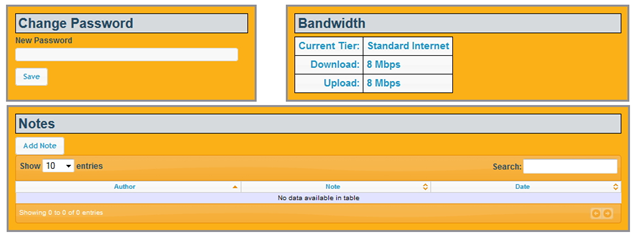
The second half of the screen allows you to reset the resident’s account password (The username is their email address). See how much download and upload speed a resident is supposed to be receiving, and you will also see important notes posted here regarding specific account circumstances such as DMCA notices.
If you pull up a resident’s account and you see an Outages section at the top with a ticket there. Click on the ticket number to view details. 
Add Resident
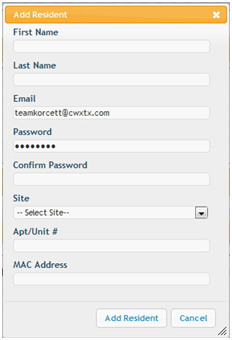
On the Residents tab you can also help residents by clicking Add Resident at the right hand side. Just fill out all the fields below and create the account if they don’t already have one.
Site Support
The Site Support tab 
Here you can select a specific location and get support information pertaining to the property. 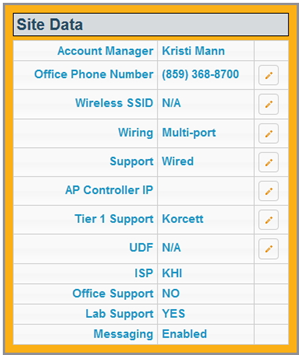
Once you select a location this screen will pop-up.
Wireless SSID will tell you the name of the wifi network if the location has wifi.
Wiring will tell you if the location is single-port or multi-port.
Support lets you know if Korcett supports wired (ethernet) connectivity, wirless or both.
AP Controller IP lets you know the IP scheme the customer should probably receiving directly from the DHCP server.
Tier 1 Support is VERY important. This field tells you if Korcett supports Tier 1 (network troubleshooting) or if the ISP does. If Tier 1 support is the ISP then we do some basic troubleshooting (verify that there is nothing wrong with the resident’s KMC account and that the appropriate device is on it, check to see they’re getting a valid IP Address – reset if possible and check again) then we refer the customer to the ISP (ex: TWC, Suddenlink, Comcast) for network connectivity troubleshooting.